You can initiate the AutoDraw component from the timeline or in pure code (AS3, document class). These two source files are included in your purchase. This tutorial will take you step-by-step in putting the AutoDraw component to good use!
The component has two modes, revealing (drawing) an image, and the pencil draw mode.
Revealing/drawing an image
- After downloading, find the swc file
 and copy into installedDrive:\Documents and Settings\~user\Local Settings\Application Data\Adobe\Flash CS3 \en\Configuration\Components. You’re half-way there!
- Open or restart Flash, and get out a blank AS3 document. Change the framerate to around 30.
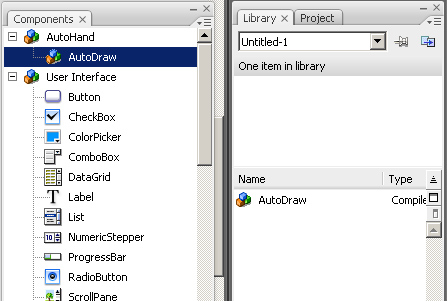
- Locate the component in your Components panel (Window>Components) and drag AutoDraw to your library:
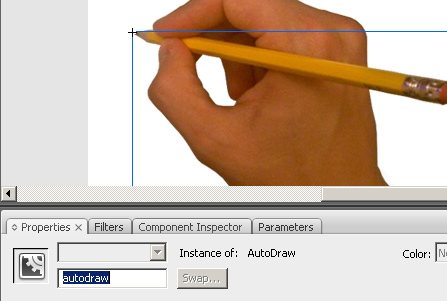
- Drag an instance to your stage, and give it an instance name:
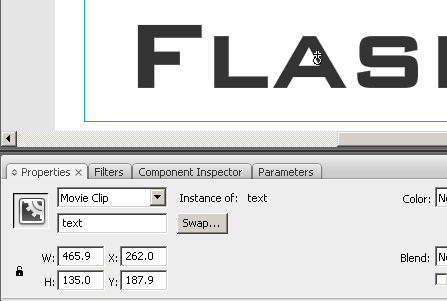
- Create the movieclip you want to show, and add it on a layer below the component. In this case, it is static text inside a movie clip:
- Draw a motion guide for the target clip. This should be the path you want the hand to reveal. It can be continuous, or broken up, but keep it in the same layer.
- Create a small circle with an instance name 'leader', and animate it on your path. Turning on 'snap to object' makes this much easier. (motion guide help here). At this point, you should have something similar to this:
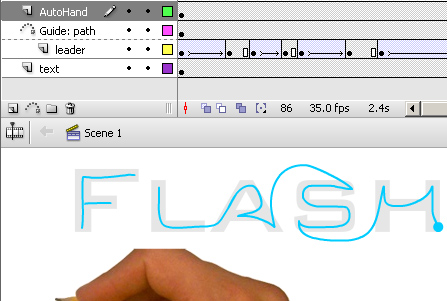
- Code in the AutoDraw component. In the first frame where you want it to start, add:
autodraw.init(leader,text);
autodraw.start();
You can also set optional parameters:autodraw.init(leader,text,{tipSize:10, scribbleSpeed:20, scribbleWidth:3});
autodraw.start();
Test your movie. From here you can adjust where it draws and the speed by changing the motion guide.
- The parameters can also be set dynamically. Insert this on your actions layer in the middle of your motion:
autodraw.motionBlur=true;
autodraw.easing=2;
Draw mode
- Draw mode is similar to the reveal mode, but there is no image to mask. In your code, simply set the 'maskee' parameter to null:
autodraw.init(leader,null);
autodraw.start();
This will follow the leader, drawing a line. Add in other parameters like:autodraw.init('mouse',null,{lineColor:0xff3388, tipSize:30, airbrush: true});
autodraw.start();
Are we having fun yet?
- To attach the pencil to your mouse, the 'leaderClip' will need to be the mouse. Just pass 'mouse' in here:
stop();

autodraw.init('mouse',text);

autodraw.start();
Here I have put the 'text' movieclip back in as the maskee, so drawing with the mouse will reveal it.
Documentation
Public Methods
- init(leaderClip: Object,maskee: DisplayObject=null,optionalFeatures: Object=null) - Required to start the AutoDraw component, with start().
- leaderClip: Object - The drawing and the hand graphic will follow this Object, and so must have x and y properties. This means any DisplayObject, Point, etc. To attach to the mouse, pass the string 'mouse' here. The leaderClip parameter is the only requirement.
- maskee: DisplayObject - The DisplayObject to mask. This will be hidden on start(). A valid DisplayObject here will initiate mask (reveal) mode. Setting this to null initiates drawing mode, with all other properties still applied.
- optionalFeatures: Object - A passed Object with any of the following properties. The value in parentheses after the data type is the default. These defaults are set with every call to init().
- start() - Starts the drawing/masking of the component.
Public Properties
- lineColor(newColor:uint=0) - The color of the drawn line, when not in reveal (mask) mode.
- tipSize(newSize:int=6) - The size of the drawn line, in either mode.
- scribbleSpeed(newSpeed:int=0) - Off by default, this works with scribbleWidth to simulate a back and forth motion. The scribble angle is always perpendicular to the motion angle.
- scribbleWidth(newWidth:int=0) - With scribbleSpeed, this creates a back and forth motion to the action. Don't get too crazy with it.
- easing(newEasing:Number=0) - This smooths the motion of the hand, and also the drawn line.
- sound(on:Boolean=false) - Initiates the scribbling sound of a pencil.
- motionBlur(on:Boolean=false) - Initiates a motion blur on the hand, kicking in after a certain velocity is reached.
- airbrush(on:Boolean=false) - Turns on airbrush mode, which sprays the line instead of drawing a solid one.
Events
- AutoDrawEvent.LEADER_START - Dispatched when the leader starts moving.
- AutoDrawEvent.LEADER_STOP - Dispatched when the leader stops moving.
keywords: pencil draw, hand-drawn, sketch, scribble, doodle, sign, reveal image, mask effect, hand-drawn, customizable, paper